






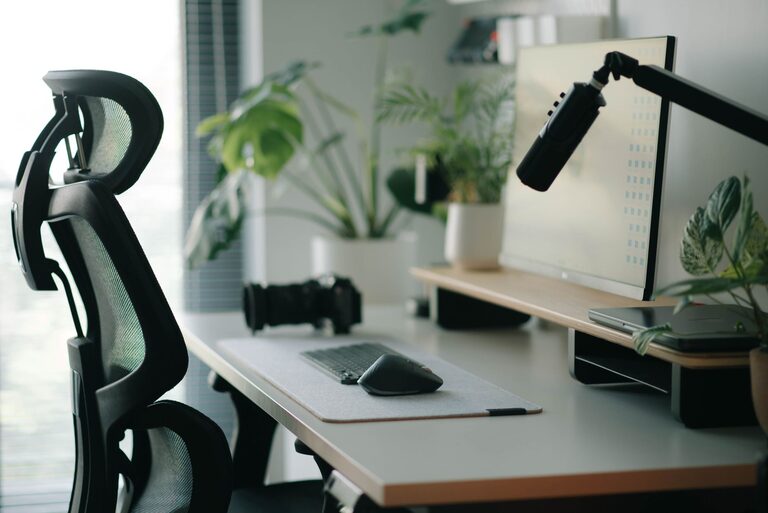
A well-planned desk setup can make work feel easier and more enjoyable. Your surroundings affect how quickly you find things, how easily you stay focused, and how comfortable you feel throughout the day. The best setup does not need to be expensive or elaborate. Small adjustments to your desk, chair, lighting, and daily habits can make a noticeable difference.
Start With the Right Desk Location
Where you place your desk matters almost as much as what you place on it. Choose a location with enough space to work without feeling crowded. If possible, position the desk near natural light, but avoid placing your monitor directly in front of a bright window. Reflections and glare can make the screen harder to read.
Think about the activity around your desk, too. A quiet corner may help you focus, while a central location can be useful if you need to keep an eye on household activity. If you work from home, try to create a clear boundary between your workspace and areas used for relaxation.
Before arranging equipment, check that you have:
– Enough room to move your chair in and out
– Easy access to power outlets
– A comfortable viewing distance from the monitor
– Minimal glare from windows or overhead lights
– Space for notebooks, accessories, and other regular supplies
Choose a Chair That Supports Your Work
Your chair should allow you to sit comfortably while keeping your body in a relaxed, supported position. Look for adjustable features such as seat height, back support, and armrests. A chair does not have to be designed specifically for an office, but it should be stable and comfortable for the amount of time you plan to use it.
Adjust the chair so your feet rest flat on the floor. Your knees should be around the same height as your hips, with enough space behind your knees to avoid pressure. Keep your shoulders relaxed rather than raised toward your ears.
If your feet do not reach the floor after adjusting the chair, consider using a footrest, a sturdy box, or another stable support. The goal is to create a balanced sitting position without forcing your legs or back into an awkward angle.
Position Your Monitor Carefully
A monitor that is too low, too high, or too close can make your workspace feel uncomfortable. Place the screen directly in front of you so you do not need to turn your head repeatedly. The top of the screen should generally be near eye level, although the ideal position depends on your posture and screen size.
Keep the monitor about an arm’s length away, then adjust it based on text size and personal comfort. If you find yourself leaning forward to read, increase the text size instead of moving closer.
To reduce glare:
– Turn the monitor away from direct sunlight
– Adjust curtains or blinds during bright parts of the day
– Use a matte screen or an anti-glare filter if needed
– Clean the screen regularly
– Adjust screen brightness to match the room
If you use two monitors, place the screen you use most directly in front of you. Position the second screen beside it at a similar height to reduce frequent changes in head position.
Keep Your Keyboard and Mouse Within Reach
Your keyboard and mouse should be close enough that you can use them without reaching forward. Keep your elbows near your sides, and let your forearms rest comfortably rather than hovering above the desk.
Place the keyboard so your wrists are in a natural, relaxed position. You do not need to press your wrists firmly into the desk. If you use a keyboard with adjustable feet, test both flat and raised positions to see which feels more comfortable.
Your mouse should sit close to the keyboard. A mouse that is too far away can encourage repeated reaching. If you use a laptop, an external keyboard and mouse can help you position the screen and input devices separately.
Improve Your Lighting
Good lighting helps you read comfortably and creates a more pleasant work environment. Use a mix of natural light, general room lighting, and task lighting when possible.
A desk lamp can provide focused light for reading and writing. Place it on the opposite side of your writing hand when possible to reduce shadows. If you are right-handed, placing the lamp on the left may help, while left-handed users may prefer it on the right.
Avoid relying on a bright screen in an otherwise dark room. This sharp contrast can make the workspace feel tiring. Instead, use a soft background light and adjust your screen brightness to suit the room.
Reduce Visual Clutter
A crowded desk can create small distractions throughout the day. You do not need to keep the surface completely empty, but every item should have a purpose or a regular place.
Start by removing items you do not use during your workday. Then group the remaining items into simple categories:
– Daily essentials, such as your keyboard, mouse, and notebook
– Occasional tools, such as chargers and reference materials
– Personal items, such as photos or small decorations
– Items that belong elsewhere
Use a drawer organizer, small containers, or a cable tray to keep loose items under control. Leave some open space on the desk so you can write, review documents, or move equipment without rearranging everything.
Manage Cables and Devices
Cable clutter can make a clean desk look untidy and can make it harder to unplug or move equipment. Begin by identifying which cables you use every day. Labeling both ends can help if you need to troubleshoot or reorganize your setup later.
Simple cable management options include:
– Reusable cable ties
– Adhesive clips
– A cable sleeve
– A small power strip mounted under the desk
– A box or tray for charging devices
Keep frequently used charging cables easy to reach, but avoid placing them across your main work area. If you use several devices, consider a charging station so phones, tablets, and headphones have a consistent home.
Make Focus Easier
Comfort is important, but your desk should also support concentration. Keep only the tools and apps you need for the task in front of you. Store distracting items out of sight when possible, and silence nonessential notifications during focused work.
A simple visual cue can help signal that it is time to concentrate. This might be a specific desk lamp, a clean desktop, or a pair of headphones used only during work sessions. If you share your space, agree on a quiet period or use a small sign to show when you should not be interrupted.
Break large tasks into smaller steps. A clear checklist can reduce the temptation to switch between tasks and helps you see progress without keeping everything in your head.
Build Movement Into Your Routine
Even a comfortable desk setup should not encourage you to stay in one position all day. Change your posture regularly and take short breaks between tasks. Stand up, walk around, stretch gently, or refill your water.
You can also vary your work position by using a standing desk converter or moving to another suitable surface for part of the day. The most useful setup is one that allows some flexibility rather than locking you into a single position.
Try a simple routine:
- Check your posture at the start of each work session.
- Refill your water before beginning a focused task.
- Take a brief movement break between major tasks.
- Reset your desk at the end of the day.
Review Your Setup Regularly
Your needs may change as your projects, equipment, or schedule change. Set aside a few minutes every month to review your workspace. Remove items you no longer use, adjust your monitor, organize cables, and check whether your chair and lighting still work well.
A comfortable, focused desk setup is built through small improvements. Start with the changes that will have the greatest effect, such as adjusting your screen height, improving lighting, or clearing clutter. Over time, these simple habits can create a workspace that feels calmer, more practical, and better suited to your everyday work.